
Images & Files
Images can be added by typing a markdown image tag, but you obviously need to know the URL or path to it. If you keep your images in src/assets/ as Astro recommends, adding something like a screenshot requires you to stop writing, rename the image to something sensible (and unique), move it into src/assets/ and then add the image tag to your content file. All of which is super annoying.
Dragging Images into Astro Editor
Section titled “Dragging Images into Astro Editor”Astro Editor helps with this by allowing you to drag images and files into the editor. Dragging a file called My Nice Photo (1).png from somewhere like your desktop into a file in the editor will do the following:
-
Copy it to your project
The file will be copied to wherever you keep your assets. By default, this is
src/assets/<collectionname>/, but this can be configured in the preferences. -
Rename it
The filename is downcased, spaces are replaced with dashes, and characters like brackets are stripped. The current date is prepended. This is done at the same time as Step 1, so we end up with
2026-06-23-my-nice-photo-1.pngin our assets directory.If a file of that name already exists,
-1will be appended (or incremented if already present) to ensure uniqueness. -
Insert the markdown link
A markdown image tag will be inserted in your content file. For this example it would look something like this:

Dragging other files (PDFs etc) works identically, except that a markdown link is inserted instead of an image tag.
Previewing images
Section titled “Previewing images”When in the main editor, you can quickly preview images by holding
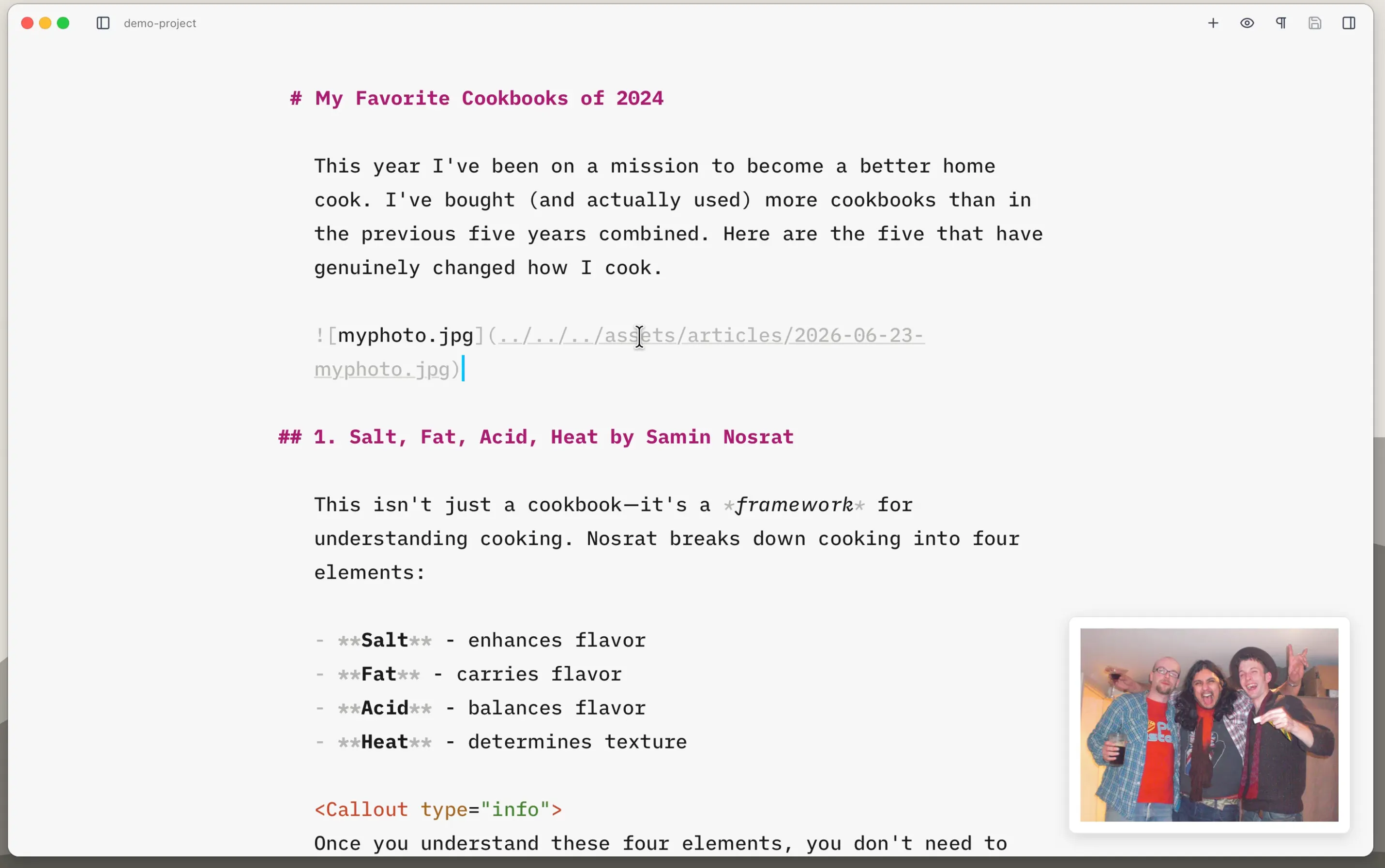
Relative paths like ./image.png or ../images/photo.jpg are resolved relative to the current file, while absolute paths like /src/assets/article/image.png are resolved relative to your project root.