
Toolbar
Minimal UI controls.
Astro Editor is an interface for the content in your Astro project — the philosophy page explains why that matters. To properly understand this in practice, it helps to look at a quick example.
Imagine we have an Astro site with two content collections: articles and notes, defined in content.config.ts like this:
const articles = defineCollection({  loader: glob({ pattern: '**/[^_]*.{md,mdx}', base: './src/content/articles' }),  schema: ({ image }) =>    z.object({      title: z.string(),      slug: z.string().optional(),      draft: z.boolean().default(false),      description: z.string().optional(),      pubDate: z.coerce.date(),      cover: image().optional(),    }),});
const notes = defineCollection({  loader: glob({ pattern: '**/[^_]*.{md,mdx}', base: './src/content/notes' }),  schema: () =>    z.object({      title: z.string(),      sourceURL: z.string().optional(),      slug: z.string().optional(),      pubDate: z.coerce.date(),      draft: z.boolean().default(false),      description: z.string().optional(),      tags: z.array(z.string()).optional(),    }),});
We can expect a note to look something like this in VSCode…
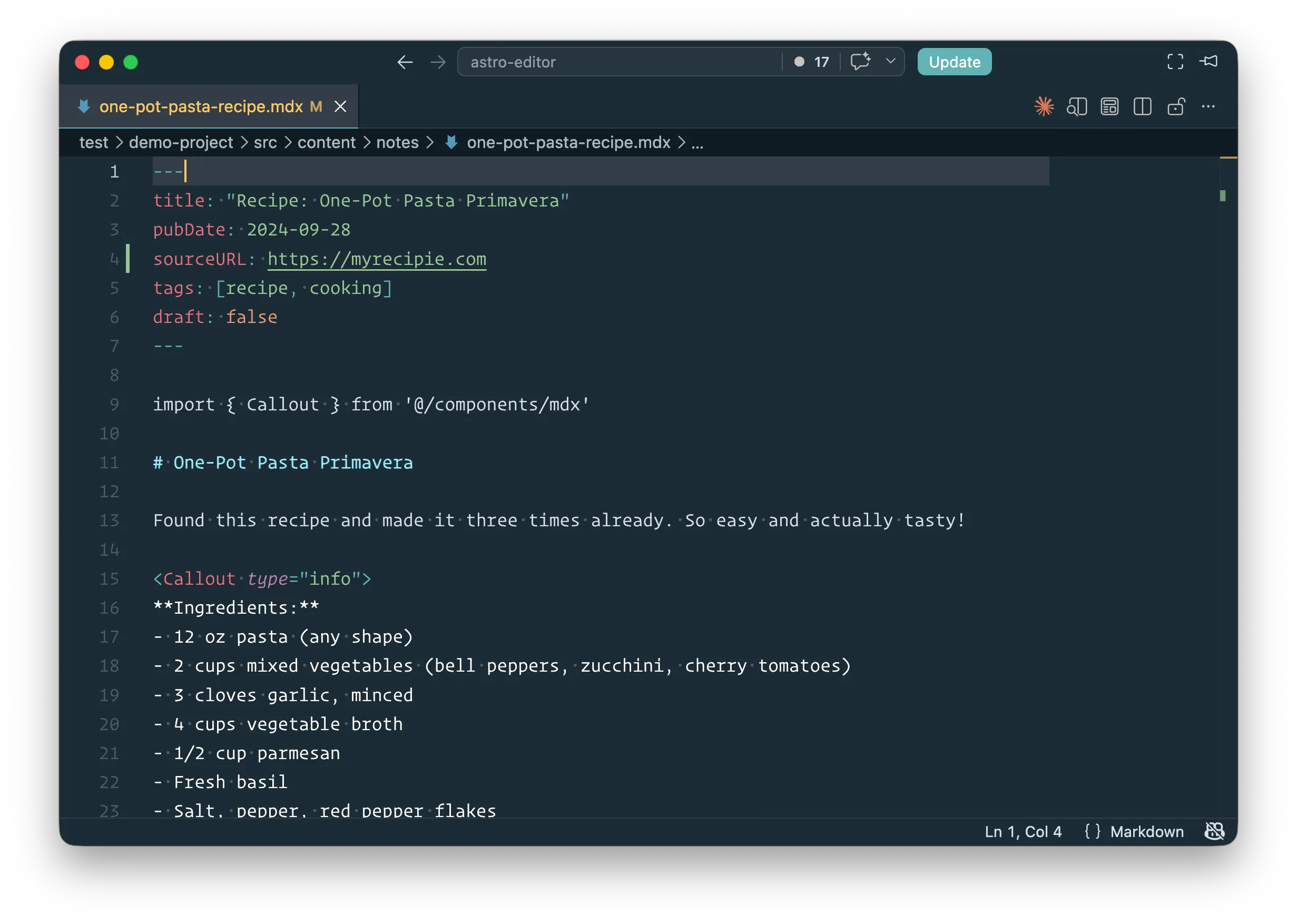
This is not a pleasant interface for writing content.
import for an Astro component we’re using further down.This same file is shown like this in Astro Editor…
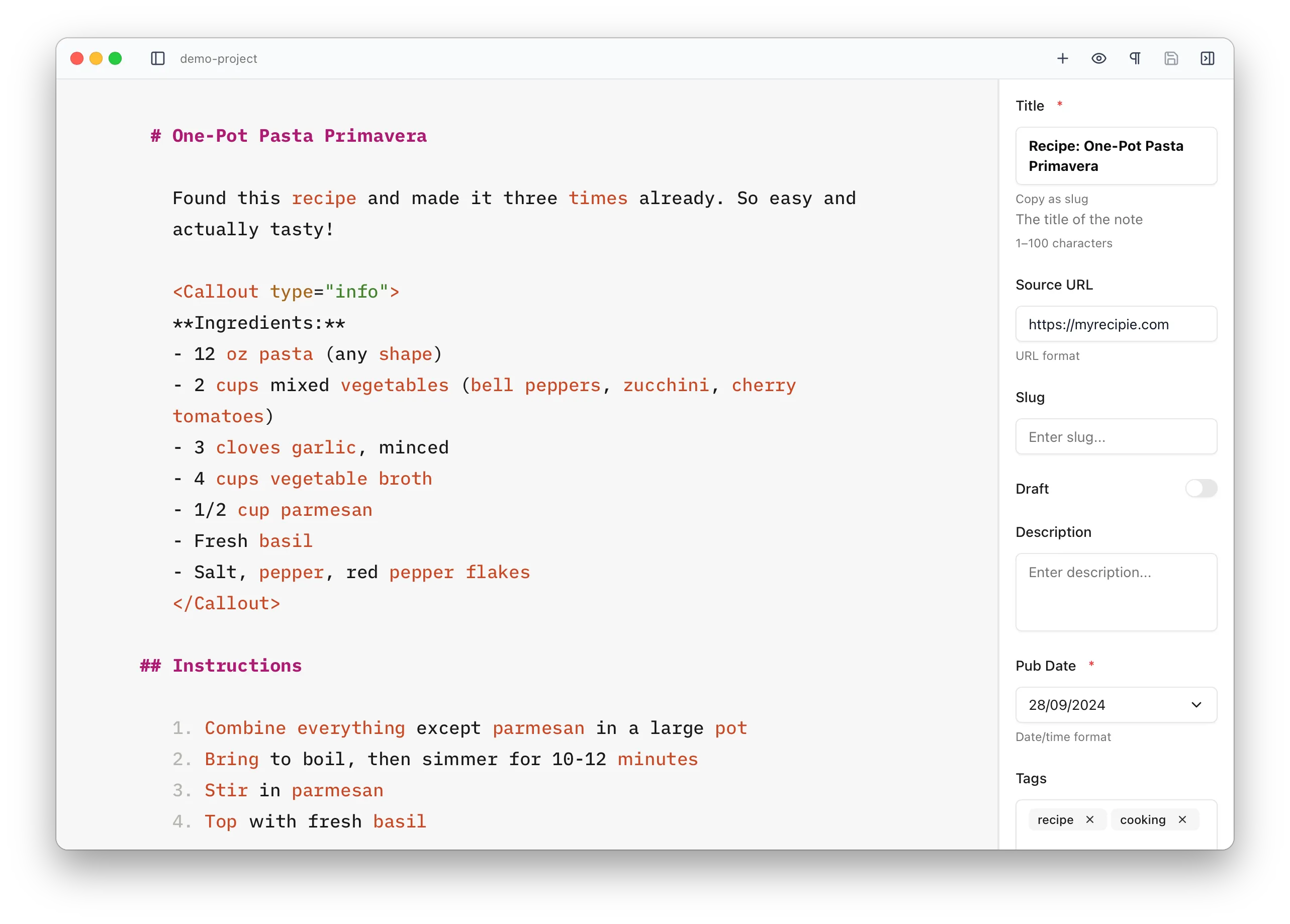
imports are hidden.slug or description in the file’s frontmatter there are empty fields for them in the sidebar because Astro Editor has read the schema and knows those fields are available for notes.Given those two content collections, Astro Editor will expect your project to look something like this:
content.config.ts provides information on the content collections and their frontmatter fields.content/<collection>/ directories are where we look for the actual content files of each collection.assets/<collection>/ directories are where we add images and files dragged into the editor, or uploaded to image frontmatter fields.components/mdx/ directory contains components like Callout.astro, which can be easily inserted into content using the MDX component builder.Astro Editor uses a simple three-panel layout.
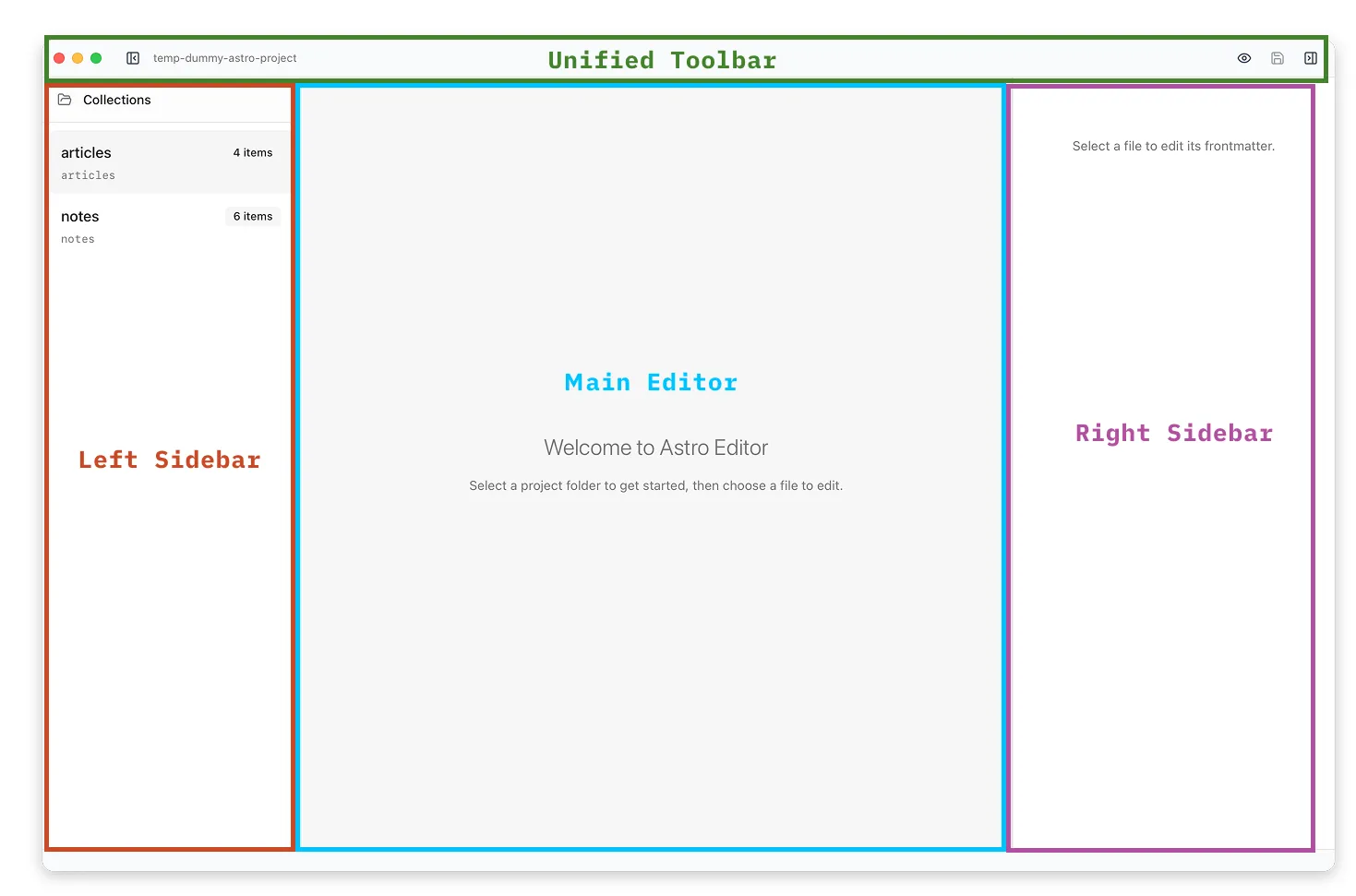
Toolbar
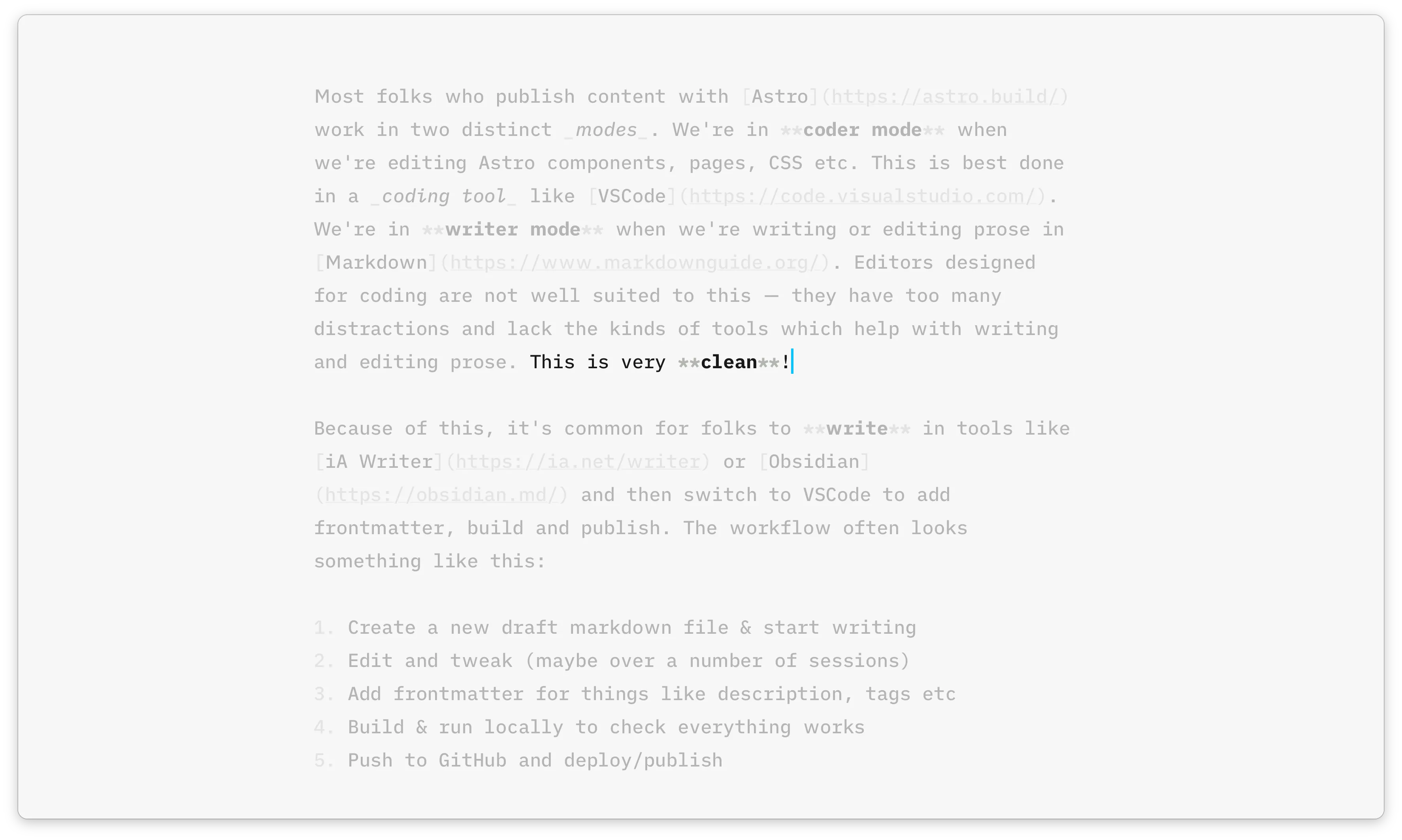
With both sidebars hidden and Focus Mode switched on, we get an extremely clean interface for working with our content.
Astro Editor will only work properly with Astro projects which:
src/content/config.ts or src/content.config.ts file with at least one collection defined using defineCollection. It must use the glob loader and have a schema.src/content/[collectionname]/