
Preferences
The preferences can be opened with
General
Section titled “General”Global preferences that apply to every project.
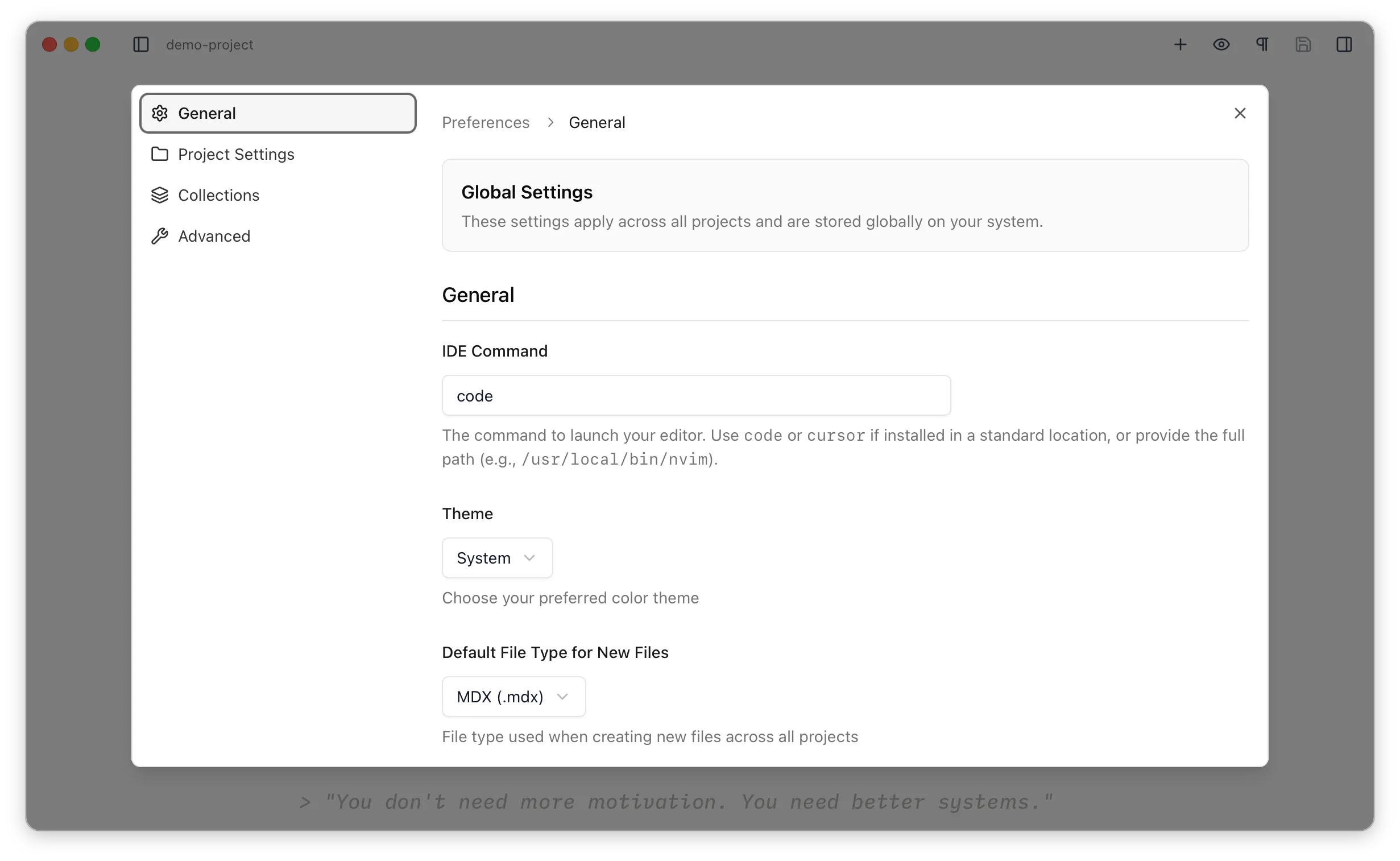
IDE Command — the command used to launch your editor for “Open in IDE” (for example code, cursor, or a full path like /usr/local/bin/nvim). See IDE Integration.
Theme — Light, Dark, or System (System follows your operating system).
Default File Type for New Files — whether new files are created as Markdown (.md) or MDX (.mdx). Can be overridden per project and per collection — see Overrides.
Appearance
Section titled “Appearance”Heading Color (Light Mode) / Heading Color (Dark Mode) — the colour of Markdown headings in the editor, set separately for each theme, each with a Reset button. See the editor overview.
Editor Font Size — the base font size for editor text, in pixels (default 18). The rest of the editor’s typography scales from this.
Editor
Section titled “Editor”Auto Save Delay — how long after you stop typing before changes are written to disk: 1, 2, 5, or 10 seconds (default 2). See Auto-save.
Project Settings
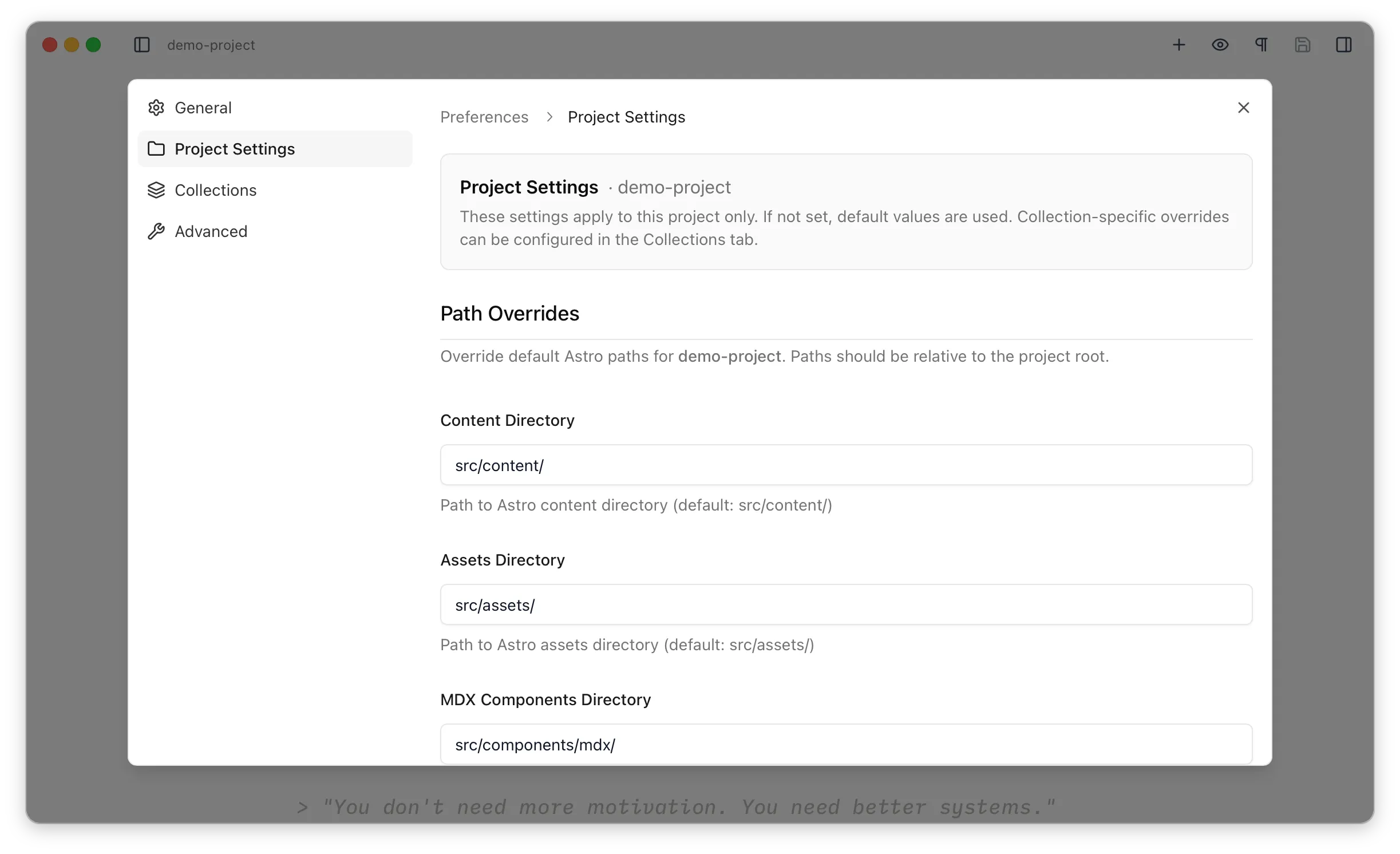
Section titled “Project Settings”Settings for the whole of the currently-open project. Where a setting isn’t set here, Astro Editor’s built-in default is used. Per-collection overrides live in the Collections tab.
Path Overrides
Section titled “Path Overrides”Point Astro Editor at non-standard directories. Overrides lists the defaults and scope for each.
Content Directory — where your content collections live (default src/content).
Assets Directory — where dragged or inserted images are copied (default src/assets).
MDX Components Directory — where the component builder looks for components (default src/components/mdx). This one has no per-collection override.
Use Absolute Paths for Images — off by default, so inserted image paths are relative to the current file. See Images & Files.
File Defaults
Section titled “File Defaults”Default File Type for New Files — override the global default for this project, or inherit it.
Collections
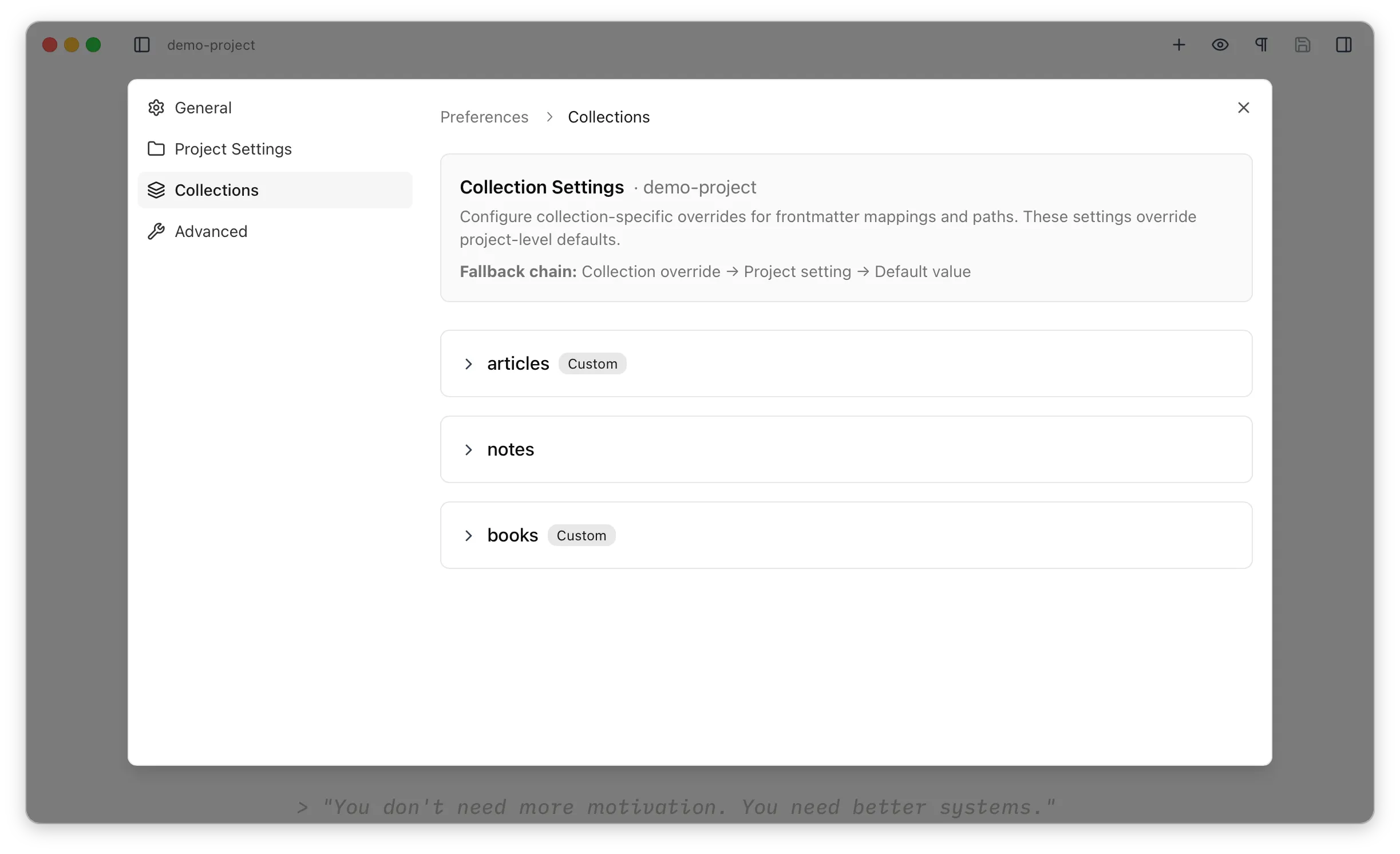
Section titled “Collections”Per-collection overrides, for when collections within a project have different structures or conventions. Pick a collection, then set any of the settings below. Each one falls back to the project setting, then the built-in default — the three-tier fallback.
Path Overrides
Section titled “Path Overrides”Content Directory and Assets Directory — override the project’s paths for this one collection. (There’s no per-collection MDX components directory.)
Use Absolute Paths for Images — override the project’s image-path setting for this collection.
File Defaults
Section titled “File Defaults”Default File Type for New Files — override the project or global default for this collection.
Frontmatter Mappings
Section titled “Frontmatter Mappings”Tell Astro Editor which frontmatter field to treat as each special field in this collection. These mappings are only configurable per collection.
Published Date Field — the date field used to order the file list (must be a date field).
Title Field — the field shown as the title and given the special panel treatment (must be a string).
Description Field — the field rendered as a tall, multi-line text area (must be a string).
Draft Field — the boolean field that drives the draft badge and filter.
Content Links
Section titled “Content Links”Link URL Pattern — a template for links the Content Finder inserts, using {slug} (for example /blog/{slug}). When left empty, links use a relative file path instead. See Overrides.
Advanced
Section titled “Advanced”Diagnostics and maintenance rather than day-to-day settings. The tab shows the application and preferences versions, and offers two actions:
- Open Preferences Folder — reveal where your settings are stored on disk (see Advanced Preferences).
- Reset All Preferences — delete every stored setting and restart the app. This is destructive and can’t be undone, but it’s useful if your settings ever become corrupted. See Troubleshooting.