
Drafts, Filtering & Sorting
You can use the “Show Drafts Only” toggle in the sidebar to filter the file list so it shows only draft files. This filter works across all subdirectories within the current collection. Files are automatically detected as drafts when their draft frontmatter field (or configured equivalent) is set to true.
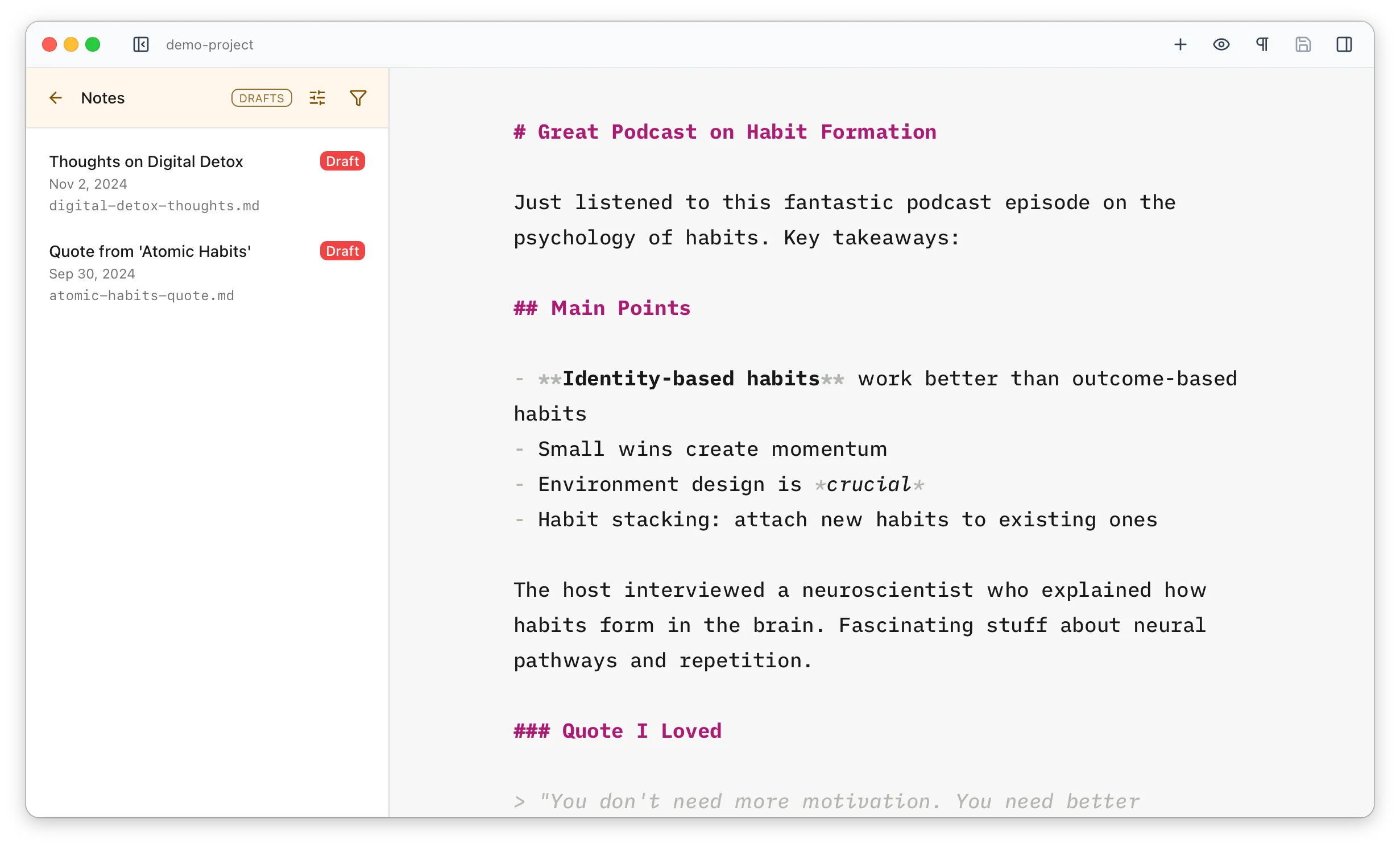
Filtering
Section titled “Filtering”You can also filter the list by typing. Click the filter button and start typing — the list narrows to files whose filename or title matches what you’ve entered (matching is case-insensitive). The sidebar header changes colour while a filter is in place.
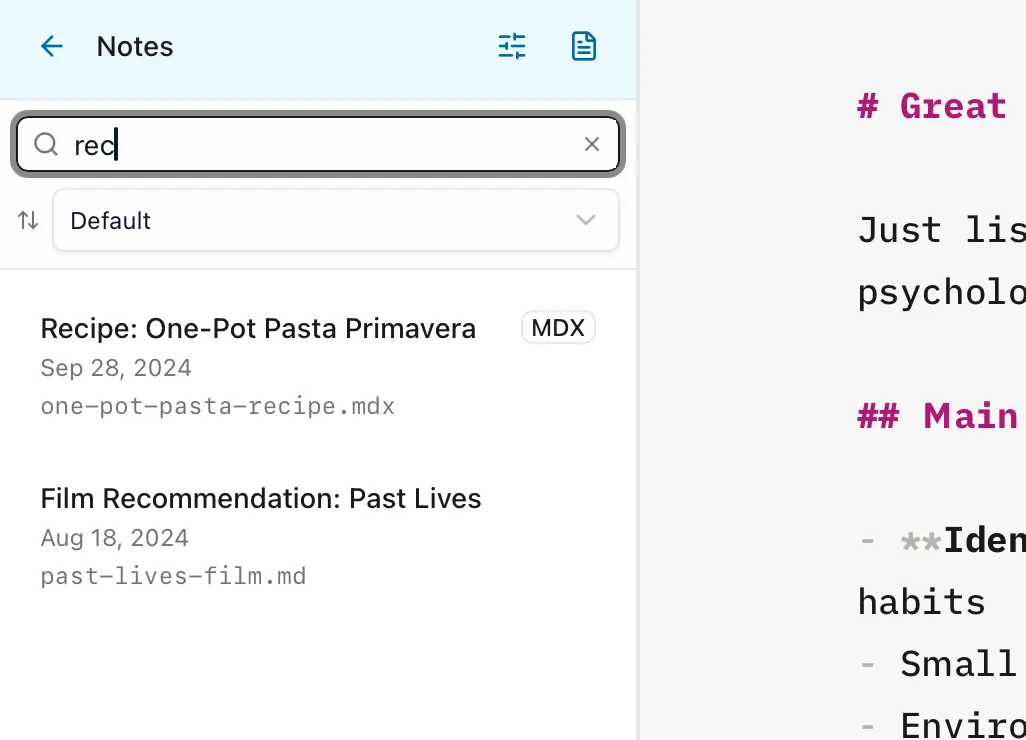
Sorting
Section titled “Sorting”By default, files are sorted by publication date, newest first. This uses whichever date field is configured for the collection — the date field by default, which you can change in preferences. Files without a date appear at the top of the list.
Pick the sort field from the dropdown. For every option except Default, an arrow button beside it flips the direction between ascending and descending.
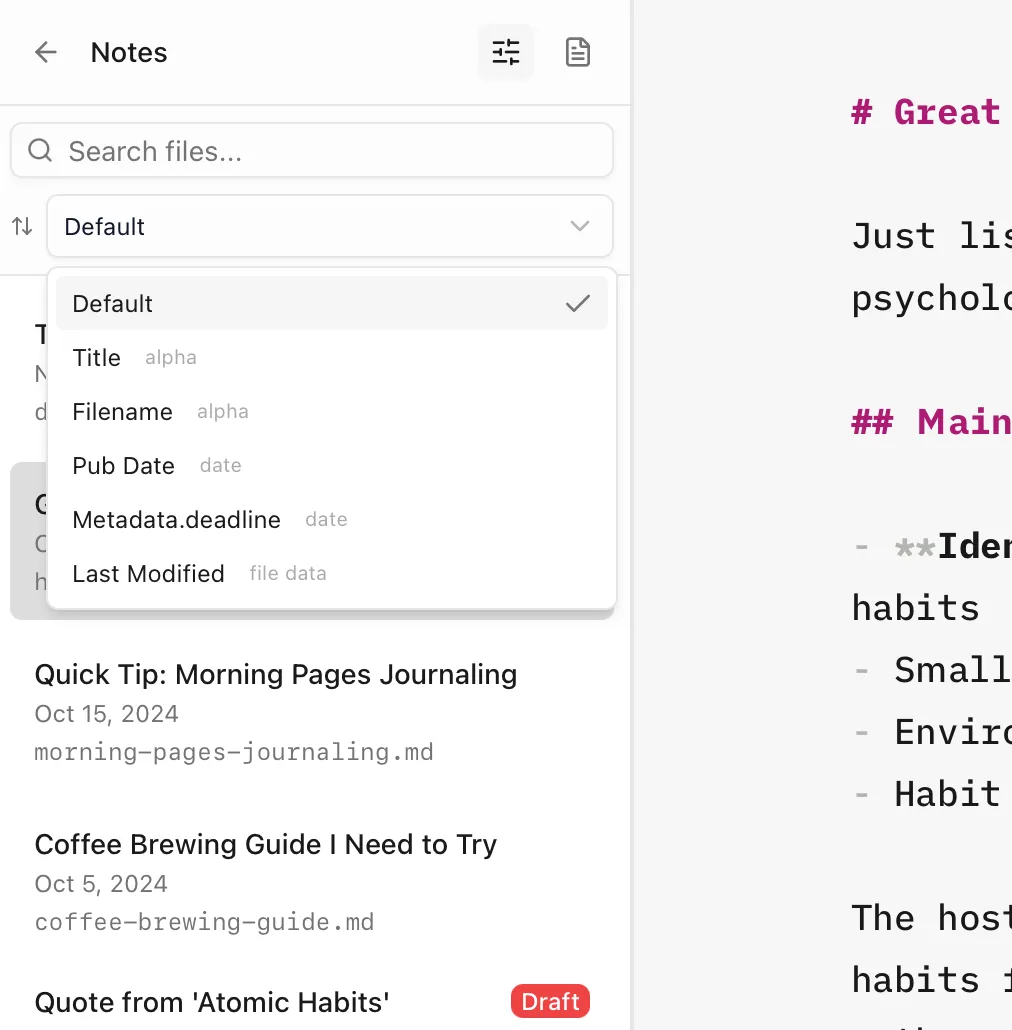
These sort options are always available:
- Default — publication date, newest first, with undated files at the top
- Title — the configured title field, alphabetically
- Filename — the filename, alphabetically
- Last Modified — when the file was last changed on disk
On top of those:
- Every date field in the collection’s schema gets its own option (a
publishedDatefield appears as “Published Date”, for example). - If the schema has a numeric field named
order, you’ll also get an Order option.