
File Management
The left sidebar is your primary interface for navigating between files and collections in your Astro project.
Opening a Project
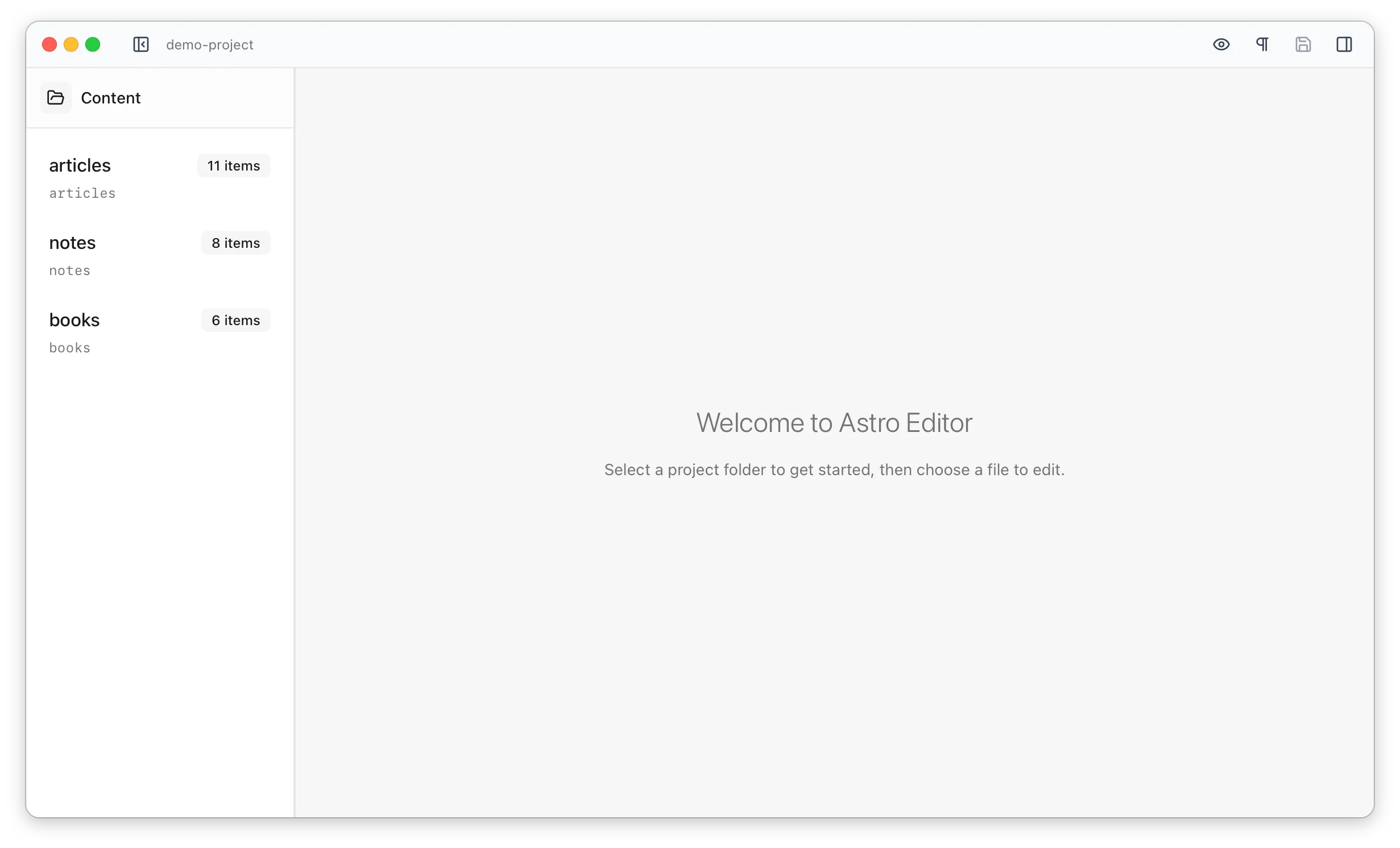
Section titled “Opening a Project”Use File > Open Project or the folder icon in the sidebar to select and open your Astro project directory. Astro Editor will automatically scan for content collections and display them in the sidebar.
Navigating between files
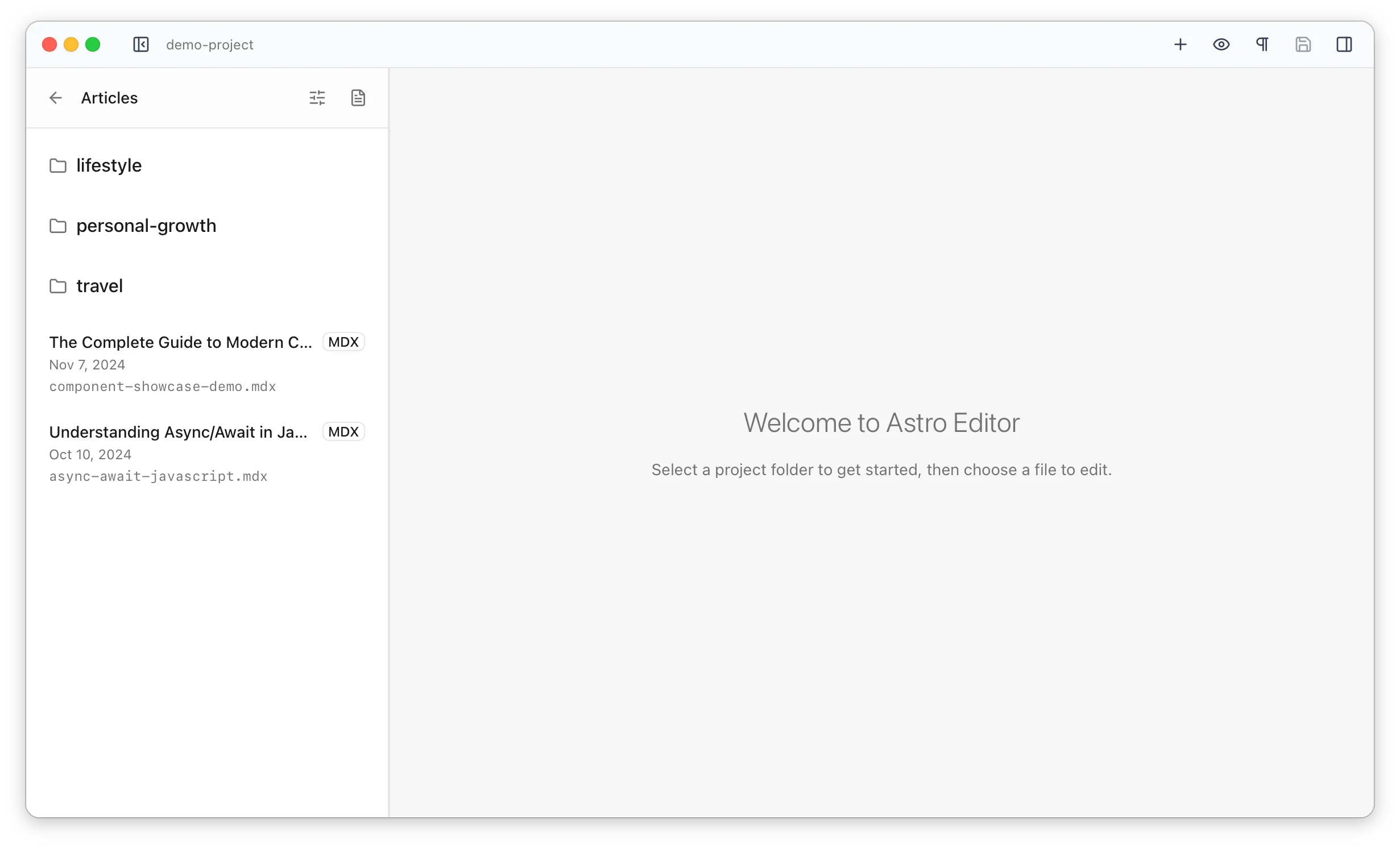
Section titled “Navigating between files”Clicking on a collection name will show its files in the sidebar. Subdirectories are also shown and can be navigated as you’d expect.
What’s shown in the sidebar
Section titled “What’s shown in the sidebar”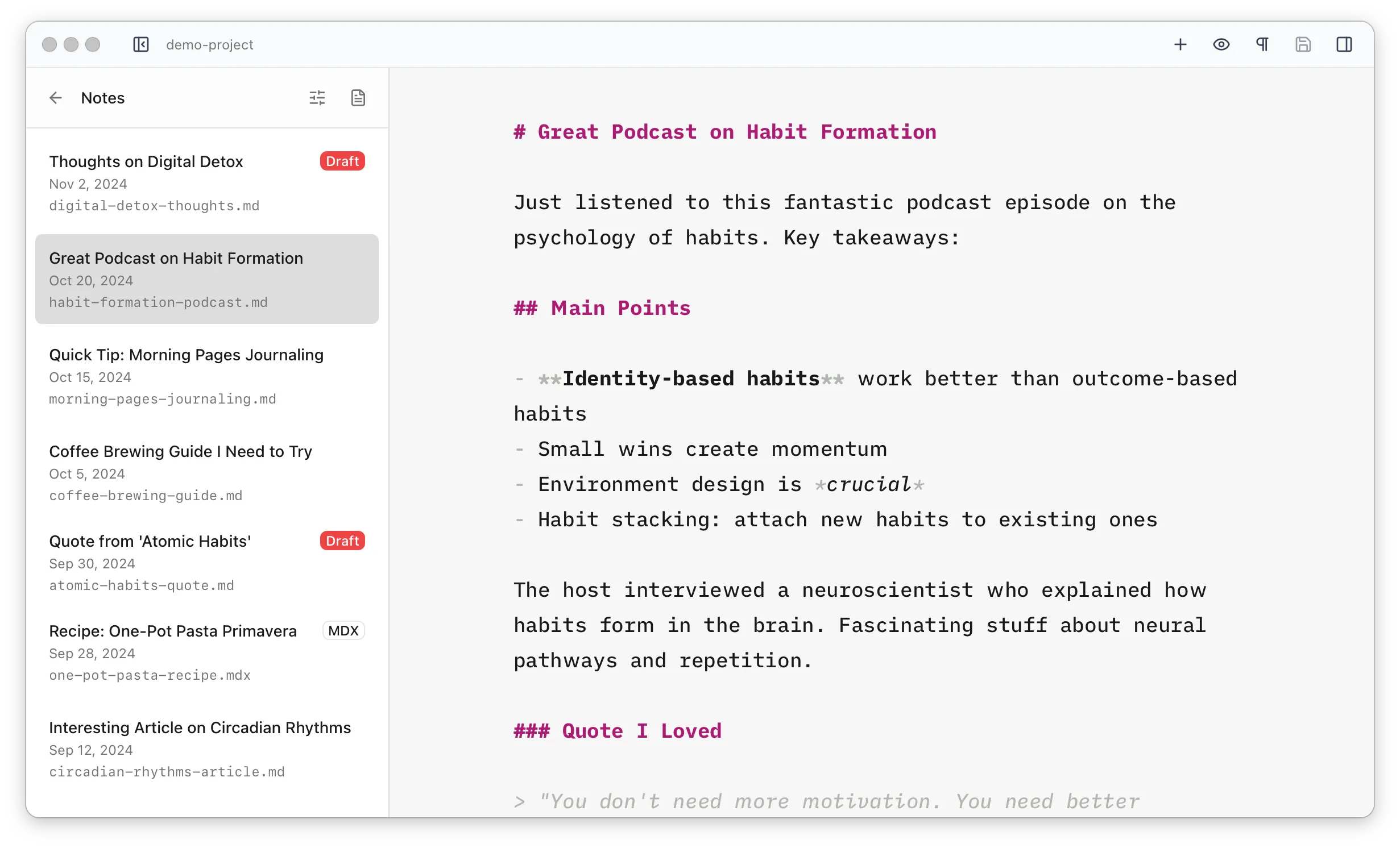
The sidebar shows the following information for each file:
| Item | Description |
|---|---|
| Title | Taken from the title frontmatter field (or whatever title field is configured in the preferences). The filename is shown if none exists. |
| Date | Publication date (or whatever pubDate field is configured in the preferences) if it exists. |
| MDX Badge | For files of that type. |
| Draft Badge | For files with draft: true (or whatever draft field is configured in the preferences). |
| Filename | Including the file extension. |
The Context Menu
Section titled “The Context Menu”Right-clicking a file in the left sidebar gives you the following options:
| Action | Description |
|---|---|
| Rename | Edit the filename. |
| Duplicate | Create a duplicate of the file with a new name. |
| Reveal in Finder | Open the file’s location in your OS’s file explorer. |
| Copy Path | Copy the absolute file path to the clipboard. |
| Open in IDE | Open the file in your configured IDE. Only shown when one is configured. |
| Delete | Delete the file. |
Creating New Files
Section titled “Creating New Files”When a collection is open, you can create a new file with